Setup guide
How to set up
Ten minutes, once. You install the game, connect an AI tool you may already use, and start playing.
Open explorio.online on your desktop to download.
You can read this guide here, then set up on your Mac.How it works
Explorio uses an AI tool already on your Mac.
Explorio has no server and no account. When you take a turn, the game asks an AI tool on your computer to tell the next part of the story. That tool uses your own login, so turns count toward your own plan.
You
Type what you do in Explorio.
Your AI tool
Claude Code, Codex or OpenCode. It runs in an empty folder, with no files and no tools.
The world
People, places, items and notes update. It all saves on your Mac.
- The AI tool never sees your files. Each call runs in a fresh, empty folder, with its tools turned off.
- A cheaper helper model works in the background. It writes your notes, folds old pages into chapters, and moves people around the world. You can switch it off in Settings.
- You can change the storyteller at any time in Settings. Your story carries on.
Step by step
Install and start.
-
Download Explorio
It's for Macs with Apple silicon (M1 or newer) running macOS 13 or later. The file is about 79 MB.
-
Drag it into Applications
Open the downloaded Explorio.dmg and drag Explorio into your Applications folder. Then open it from Applications. The app is signed and checked by Apple.
-
Install one storyteller and log in
Pick one. If you already use one of these, it's ready. Open the Terminal app and paste the lines for your choice.
The default, with the richest writing. Needs a Claude Pro or Max plan, or an Anthropic API account. recommended
# install
curl -fsSL https://claude.ai/install.sh | bash
# log in (a browser window opens), then type /exit
claude
OpenAI's tool. Log in with your ChatGPT plan or an API key. About 10 seconds a turn.
# install (needs Node.js; or: brew install codex)
npm install -g @openai/codex
# log in
codex login
The fastest, about 3 seconds a turn. Explorio uses OpenCode Go models by default, so log in with an OpenCode Go plan.
# install
curl -fsSL https://opencode.ai/install | bash
# log in
opencode auth login
Nothing to install. A small scripted storyteller answers at once, for free. It's good for looking around the screens, but it can't really tell a story.
-
Choose it in Settings
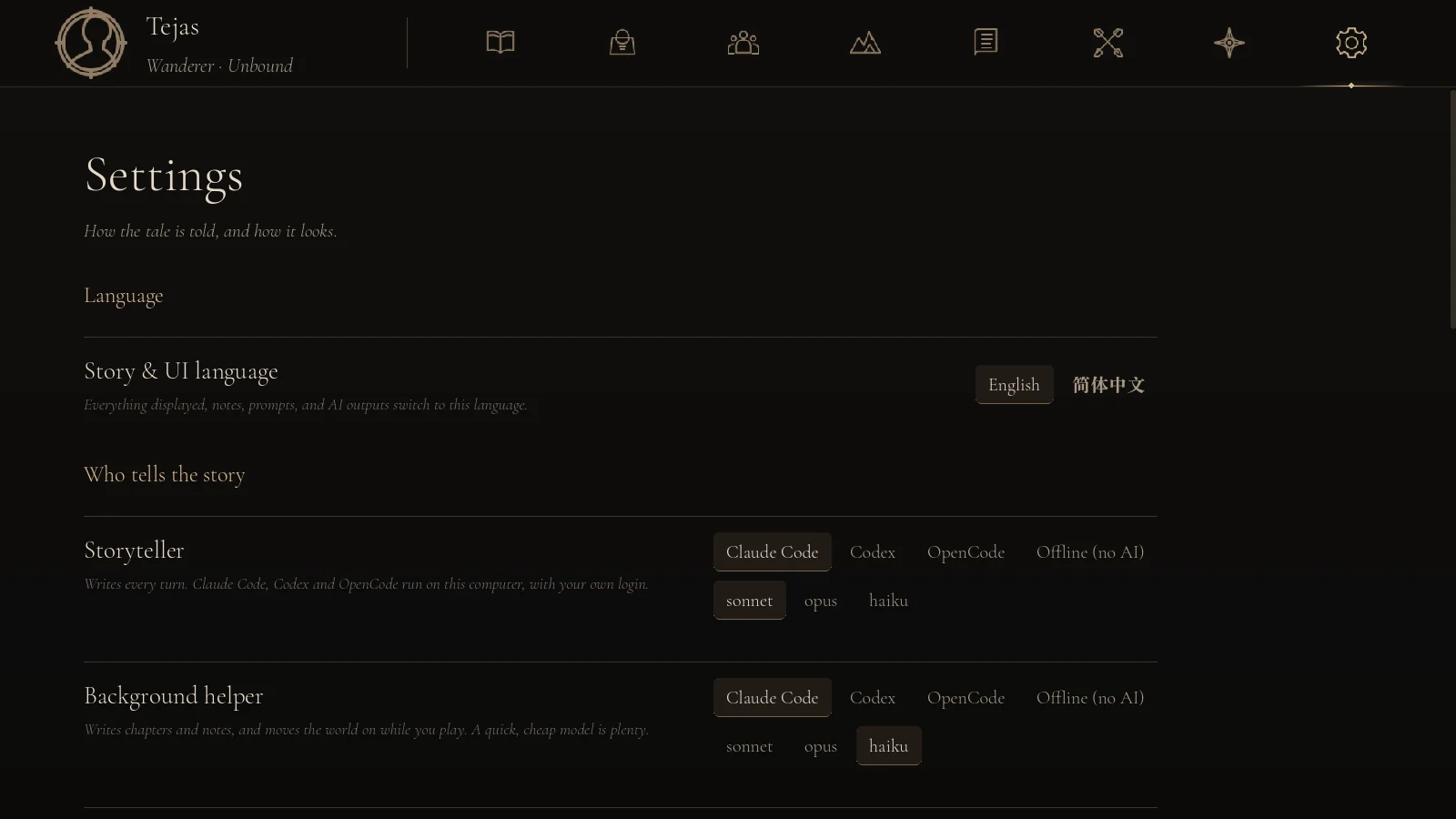
In Explorio, click the gear at the top right. Under Storyteller, pick your tool and a model. Under Background helper, a quick, cheap model is plenty (Haiku, if you use Claude). Tools that aren't installed are greyed out.
-
Begin a story
Close Settings (or press Esc) and type what you do in the line at the bottom. Press Enter to send. Shift + Enter starts a new line. Your story saves itself after every turn.
Is it running?
Check your storyteller in one line.
If the game can't reach your tool, test it in Terminal first. If you get a reply here, Explorio will work too.
# Claude Code
claude -p "Say hello in five words"
# Codex
codex exec "Say hello in five words"
# OpenCode
opencode run "Say hello in five words"
| Storyteller | Turn time | Good for |
|---|---|---|
| Claude Code · Sonnet | about 20 seconds | The best prose. The default. |
| Claude Code · Haiku | faster | Quick play, smaller plans |
| Codex | about 10 seconds | People with a ChatGPT plan |
| OpenCode | about 3 seconds | Speed |
| Offline | instant | Looking around, no AI |
Troubleshooting
If something goes wrong.
It says “Claude Code is not installed on this computer”.
Explorio looks for the tool where it's normally installed and on your Terminal's path. Install it (step 3), check that claude --version works in Terminal, then quit Explorio fully (Cmd + Q) and open it again. It only looks once per launch.
It says “The storyteller lost the thread. Try that again.”
The tool answered with an error, or nothing. Most often you're not logged in, or your plan has hit its usage limit for now.
Run the one-line check above. If it asks you to log in, log in. If it says you've hit a limit, wait, or switch to another storyteller in Settings. Then send your line again. Nothing in your story is lost.
Turns are slow.
Writing a good scene takes Sonnet about 20 seconds. You'll see the prose stream in as it's written. For quicker turns, pick Haiku, or OpenCode. Turning off Background work in Settings also frees up your tool between turns.
macOS won't open the app.
Make sure you dragged Explorio into Applications and opened it from there, not from inside the disk image. If macOS still asks, Control-click Explorio, choose Open, then Open again. Explorio needs a Mac with Apple silicon (M1 or newer) and macOS 13 or later. It won't run on Intel Macs.
Does it use up my AI plan?
Yes. Each turn is one call to your storyteller, plus a few small calls from the background helper. To spend less, use a smaller model for the helper, or switch background work off in Settings.
Where is my story saved? Can I start over?
Your story saves on your Mac after every turn, with rolling backups, here:
~/Library/Application Support/Godot/app_userdata/Explorio/saves/To start a new story, open Settings and use Begin a new story. You can pick a world there too.
How do I update?
Explorio checks for new versions on its own. You can also press Check for updates in Settings. Updates keep your story, and add new places and people to the world you're in.
Can I play on Windows, Linux or my phone?
Not yet. Explorio is a Mac game for now.
Still stuck? Open Settings and look at the background work log at the bottom. It lists each job and whether it worked, which helps find the problem.